Your App Store screenshots are the first thing users see. They decide in seconds whether to download — before reading your description. This guide shows you how to create screenshots that convert, step by step.
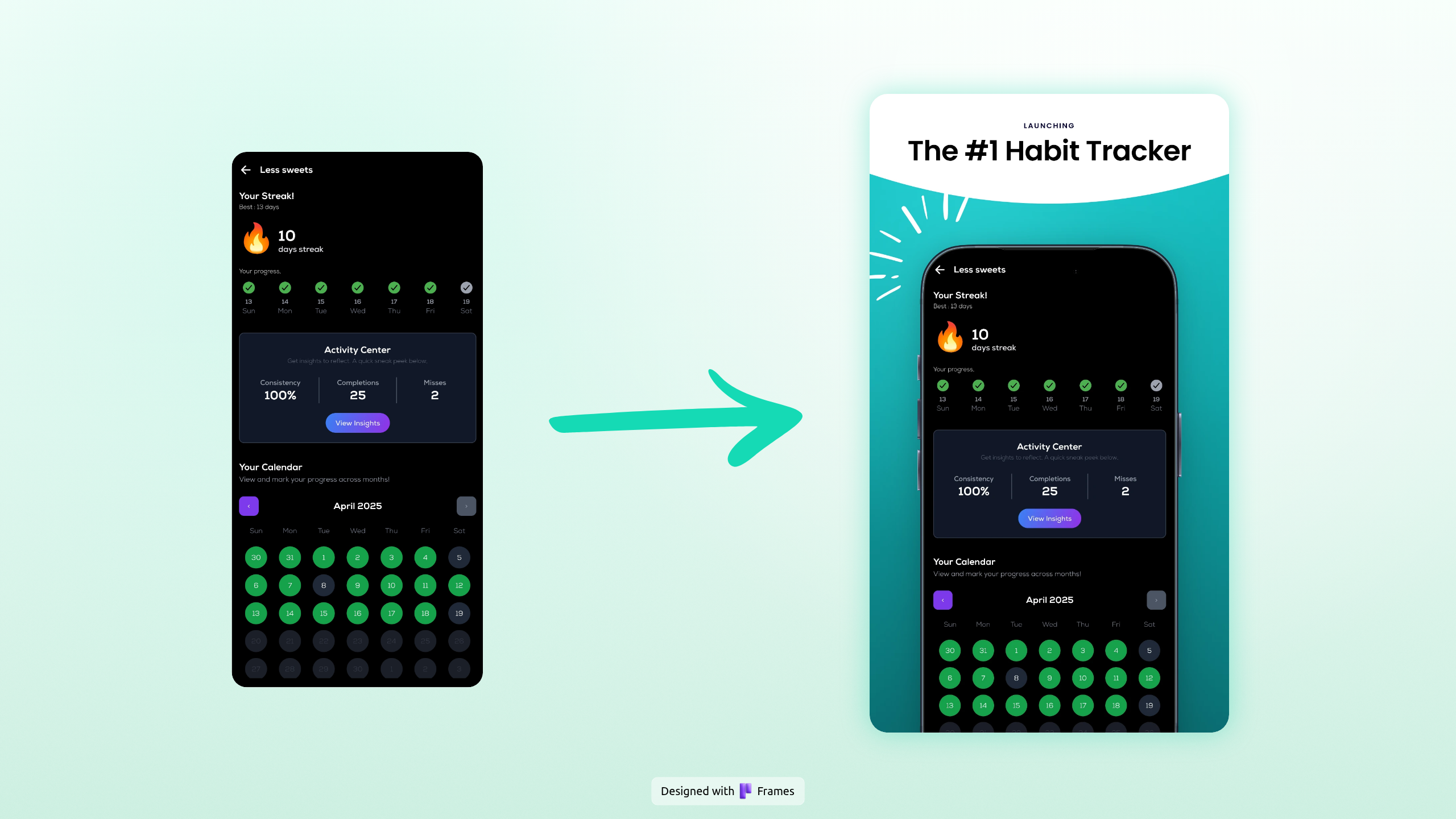
An example App Store / Play Store screenshot made with Frames in seconds.
App Store Screenshot Sizes
Apple requires specific sizes. Upload the 6.9" size (1320 × 2868 px) and it automatically scales for all modern iPhones. You only need a separate set for iPad if you support it.
| Device | Size | Required? |
|---|---|---|
| iPhone 6.9" (16 Pro Max) | 1320 × 2868 px | Yes — covers all iPhones |
| iPad 12.9" | 2048 × 2732 px | Only if you support iPad |
| Mac | 2560 × 1600 px | Only if you support Mac |
What Makes a Screenshot Convert
Three things separate a screenshot that gets downloads from one that doesn't:
- Device mockup. Raw UI on a plain background looks unfinished. Wrapping it in a realistic iPhone frame immediately signals quality.
- Short caption. 5–7 words, benefit-driven. "See everything at a glance" beats "Dashboard View".
- Strong background. A gradient or colored backdrop makes your listing pop in search results against App Store's white background.
Your first screenshot carries the most weight — it's visible without tapping. Make it your strongest value prop.
How to Create App Store Screenshots
Step 1 — Pick a backdrop and frame. Choose a background that complements your app's palette. Gradients tend to work better than flat colors — they add depth without distracting from the UI.
Step 2 — Drop in your screenshot. Upload your raw screen and it fills the device frame automatically. Dark UI inside a light frame creates strong contrast; light UI inside a dark frame reads well on App Store's white background.
Step 3 — Add a caption. Keep it short. Focus on the outcome, not the feature name.
Step 4 — Export and upload. Export as PNG. In App Store Connect, go to your app → App Store tab → drag in your screenshots per device type.
Common Mistakes
- Raw screenshots with no frame. Always add a device mockup.
- Too much on one screen. One screenshot, one message.
- Weak first screenshot. If the first one doesn't hook them, they won't scroll.
- Wrong size. Verify dimensions before submitting — wrong sizes get rejected.
FAQ
How many screenshots should I upload?
Up to 10 are allowed. Most apps perform best with 5–7. The first 3 matter most.
Do they need to be real screenshots?
No — mockups are allowed, as long as the UI shown accurately represents your actual app.
Portrait or landscape?
Portrait for almost all apps. Landscape only if your app is primarily landscape-oriented (games, video).